カメラの撮影記録(EXIF)を美しいタイポグラフィでレイアウト。
フォトレシートやリソグラフ風の印刷加工、ふんわり広がる背景ぼかしで、いつもの写真を特別な一枚へ。
Automatically visualize EXIF metadata with bespoke typography.
Elevate your photography with photo receipts, risograph print textures, and atmospheric background blur.

フォトレシートや背景ぼかし、多彩なデザインフレーム。
写真の質感を高める3つの特別な体験をお届けします。
Far more than standard borders: embrace photo receipts, atmospheric background blur, and bespoke design.
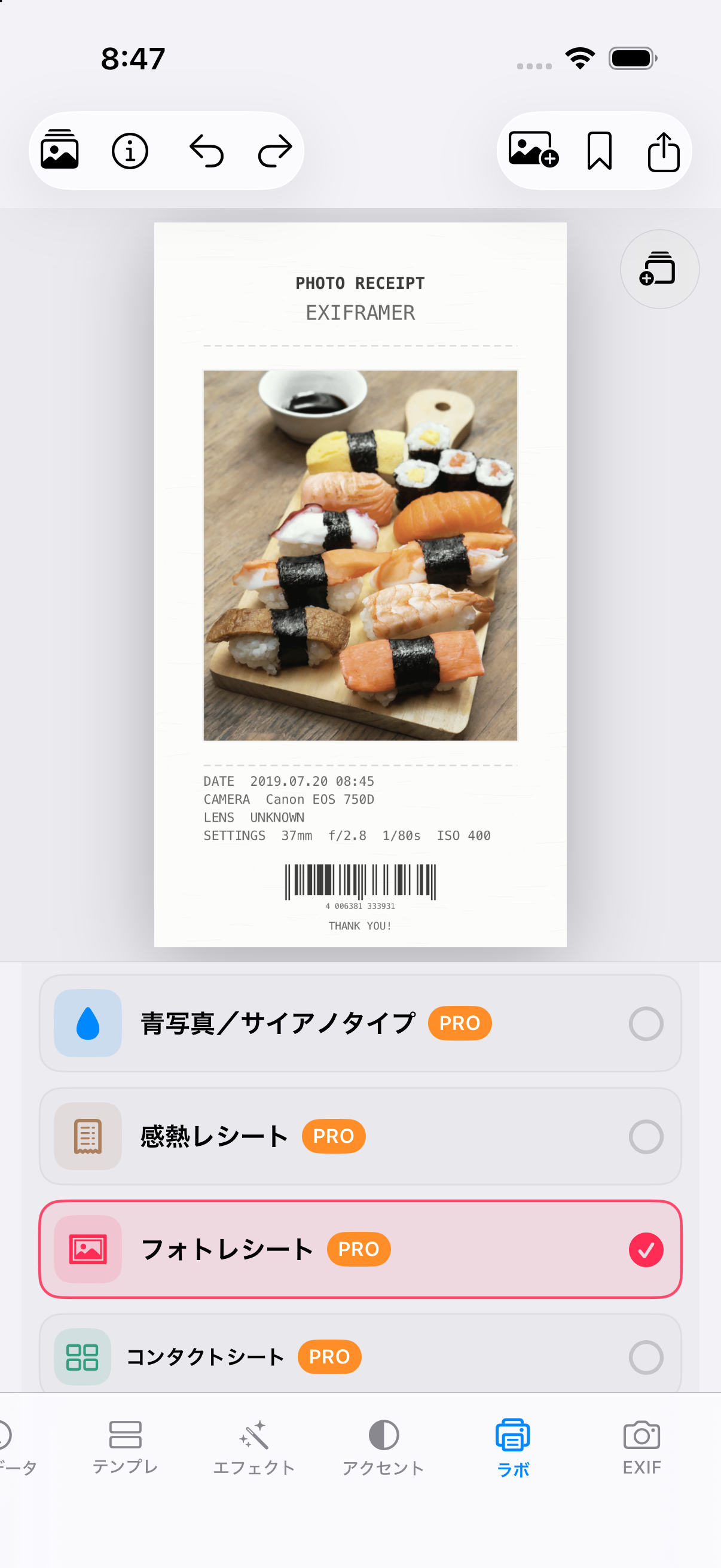
写真をレシート風に仕上げる「フォトレシート」、リソグラフ印刷、青写真、フォトコピーなどの印刷風加工を搭載。フィルムグレイン(粒状感)やRGBシフト、パートカラーで、味わい深いレトロな質感を楽しめます。
Explore the experimental "Lab" featuring Photo Receipt layouts, risograph, vintage offset magazines, blueprints, and photocopies. Add authentic film grain, chromatic aberration, or highlight a single hue with color accent for that nostalgic analogue feel.
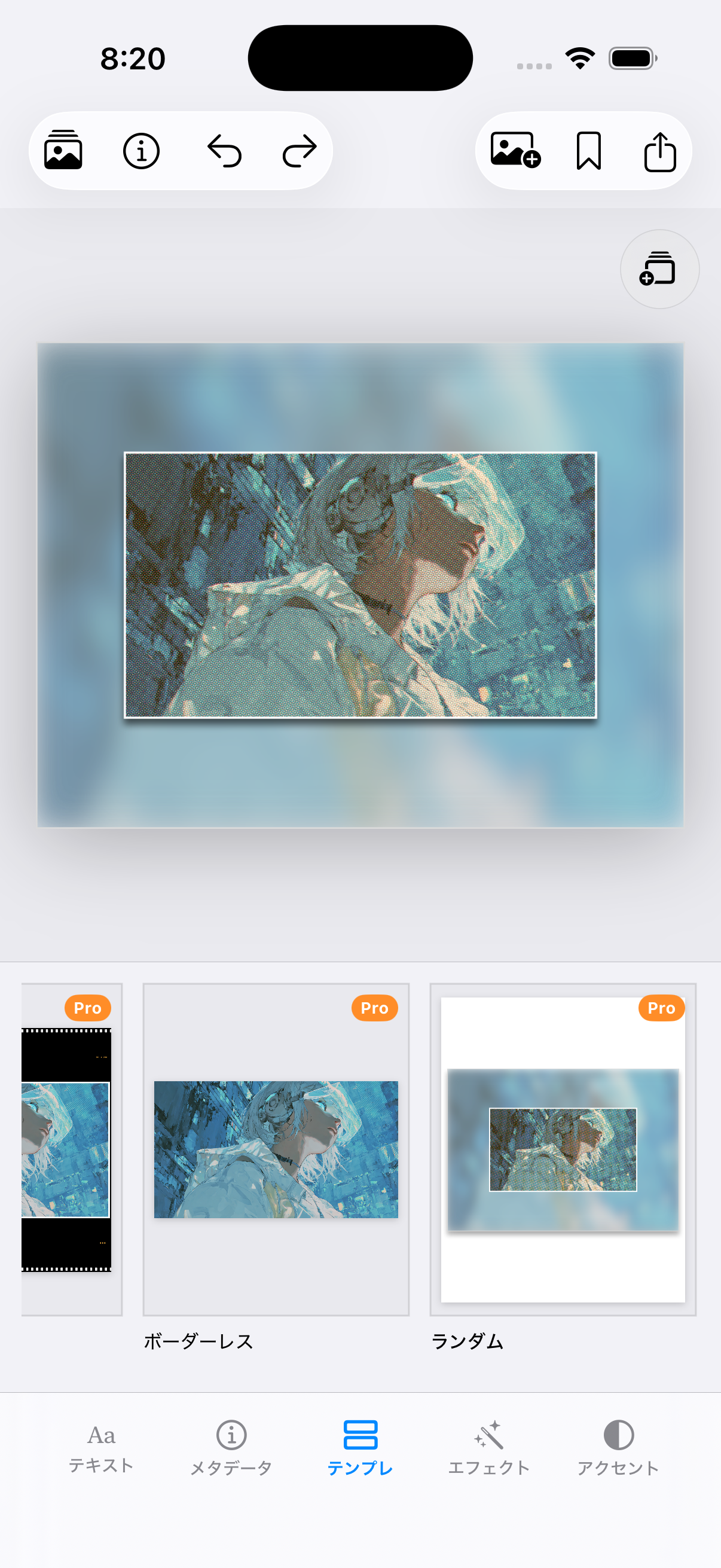
元画像をふんわりぼかして余白に配置し、被写体をドラマチックに際立たせる「背景ぼかし」に対応。映画フィルムやClassicなど11種以上のフレームに加え、本革や大理石マット、SNS向け4:5の2重フレームも楽しめます。
Elevate your subject with soft background blur that echoes your original photo with adjustable intensity and opacity. Pair with over 11 frame styles including Classic, Cinematic, and 35mm Film, or choose realistic mats like Genuine Leather and Marble.
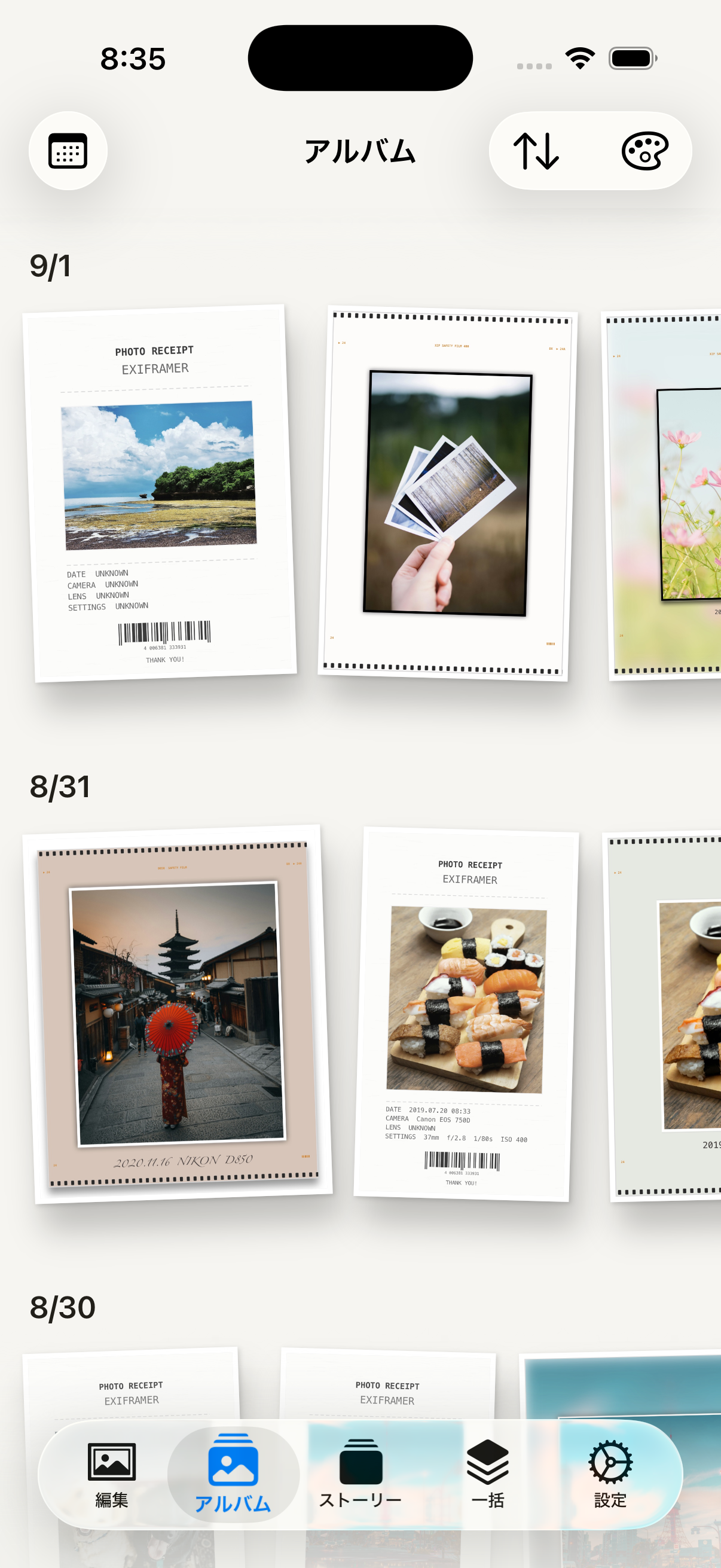
作成した作品を美しく並べるタイムラインアルバム。カフェ、抹茶、桜、オーシャンなど落ち着いたテーマ背景で日々の写真を振り返ることができます。ワンタップでの再編集や高画質保存にも対応。
Curate your framed creations in the built-in timeline album. Switch between serene gallery themes like Café, Matcha, Cherry Blossom, Ocean, and Dark. Re-edit or export high-res copies anytime with full backup and restore support.
写真愛好家やクリエイターのために設計された、細やかなプロ品質の編集機能。
Intuitive, privacy-first, and equipped with the controls you need.

カメラ機種、レンズ、焦点距離、絞り、シャッタースピード、ISO、撮影日時、位置情報などを写真から自動で瞬時に読み取ります。

Cormorant Garamond、IBM Plex Mono、Zen紅道、よもぎ、SF Pro など 9 種以上の美しいフォント。文字サイズ、行間、余白、分割配置を自由に設定できます。

被写体を引き立てる背景ぼかし、本革や大理石、木目調などのリアルな額縁マット、4:5比率のSNS二重フレームなど、多彩な表現に対応しています。

複数の写真をまとめて選択し、同じスタイル・フレームで一括レンダリング。各写真の EXIF 情報を個別に反映しながら素早く写真ライブラリへ保存できます。

フォント、文字色、マット素材、余白、背景ぼかしなど、こだわり抜いたスタイルをプリセットとして保存。次回からワンタップで呼び出せます。

日本語・英語をはじめ9言語に対応。すべての画像処理は端末内で完結するため、写真がサーバーに送信されることは一切ありません。
直感的な操作で、誰でもすぐに美しいフレーム写真が作れます。
An intuitive interface designed to let your creativity flow effortlessly.
カメラロールからお好みの写真を1枚または複数枚選択。カメラ機種や撮影パラメータが自動的に読み込まれます。
フレーム種類、フォント、背景ぼかし、フォトレシート、色合いなどを画面を見ながら心地よくカスタマイズ。
高画質JPEGまたはMP4として書き出し。InstagramやSNSへ直接シェアしたり、アルバムにコレクションできます。
Exiframer で、日々のスナップやこだわりの写真を温かみのある作品に。
今すぐ App Store からダウンロードしてお試しください。
Turn snapshots into timeless art with Exiframer.
Download now from the App Store and start framing your stories today.